Fonts and Text
Rendering text is essential for UI, dialogue, scores, and debugging.
Kraken provides the Font and Text classes for flexible text rendering.
Loading a Font
Load a TrueType font (.ttf) at a specific point size:
# Load font at size 24
font = kn.Font("fonts/arial.ttf", 24)

# Load a larger font for titles
title_font = kn.Font("fonts/arial.ttf", 48)

# Use a built-in font
retro_font = kn.Font("kraken-retro", 16)
You can also change a font's size at runtime with the pt_size property:
font.pt_size = 32 # Change to 32pt
Kraken includes two built-in fonts: "kraken-clean" and "kraken-retro".
Creating Text Objects
Create a Text object by passing a font, then set its content and color:
# Create a text object with a font
label = kn.Text(font)
label.text = "Hello, World!"
label.color = kn.Color.WHITE

# Create another with a custom color
score_text = kn.Text(font)
score_text.text = "Score: 0"
score_text.color = kn.Color(255, 200, 0)
Keep the Font Alive
A Text object uses the Font you pass into it, but it does not keep that font alive for you.
In Python terms: keep a normal reference to the font for as long as any text object using it still exists.
The following snippet is good practice for handling fonts and text.
The font variable stays around, so label can keep drawing safely:
font = kn.Font("fonts/arial.ttf", 24)
label = kn.Text(font)
label.text = "Ready"
Whereas in this next snippet, the font variable goes out of scope and label looses sight of it:
def make_label():
    font = kn.Font("fonts/arial.ttf", 24)
    label = kn.Text(font)
    label.text = "Ready"
    return label

label = make_label()
When make_label() returns, the local font variable can disappear.
The Text object still knows which font it was created with, but the original Font object may no longer be alive when you draw.
If you make text in a helper function, return or store the font too:
def make_label():
    font = kn.Font("fonts/arial.ttf", 24)
    label = kn.Text(font)
    label.text = "Ready"
    return font, label

label_font, label = make_label()
Rule of thumb:
Store fonts in the same place you store the text objects that use them: module variables, scene attributes, UI state, or any other object that lives as long as the text.
Drawing Text
Text objects have their own draw() method:
position = kn.Vec2(100, 100)

while kn.window.is_open():
    kn.event.poll()

    kn.renderer.clear()
    label.draw(position)
    kn.renderer.present()
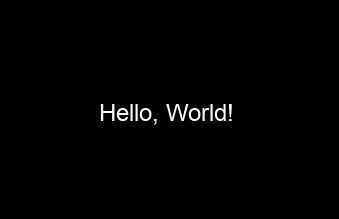
Result:
Updating Text
To change the displayed text, simply update the .text property:
score = 0
score_text = kn.Text(font)
score_text.text = f"Score: {score}"
score_text.color = kn.Color.WHITE

# When score changes:
score += 10
score_text.text = f"Score: {score}"
Font Styling
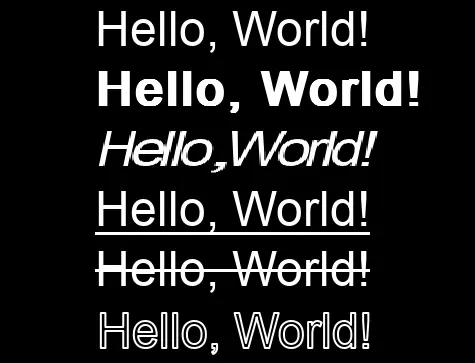
Fonts have properties for styling, with the ability to use more than one at a time:
font = kn.Font("fonts/arial.ttf", 24)

# Style options
font.bold = True
font.italic = True
font.underline = True
font.strikethrough = True

# Outline
font.outline = 1  # 1px outline
In practice:
Drop Shadows
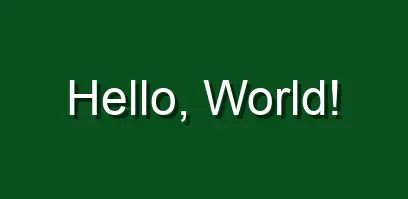
Text objects support drop shadows via the shadow_color and shadow_offset properties.
# Once
label = kn.Text(font)
label.color = kn.Color.WHITE
label.shadow_offset = kn.Vec2(4, 4)
label.shadow_color = kn.Color(0, 0, 0, 128)

# Per frame
label.draw(pos)
Result:
Multi-line Text
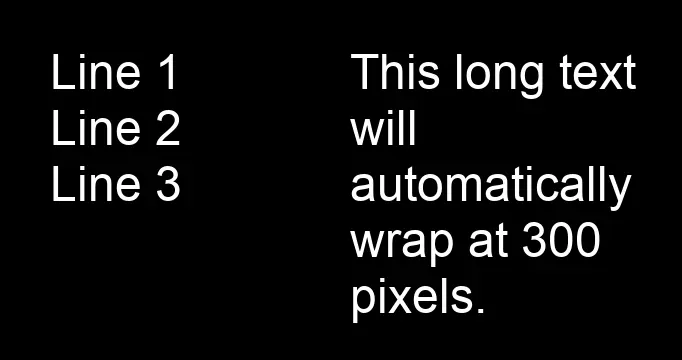
Use \n for line breaks, or set wrap_width for automatic wrapping:
dialogue = kn.Text(font)
dialogue.text = "Line 1\nLine 2\nLine 3"

# Or with automatic wrapping
dialogue.wrap_width = 300
dialogue.text = "This long text will automatically wrap at 300 pixels."
Result:
Putting It Together
Here's a full example with score display and title screen:
space_shooter.py
import pykraken as kn

SCN_WIDTH, SCN_HEIGHT = 800, 600
SCN_SIZE = kn.Vec2(SCN_WIDTH, SCN_HEIGHT)
BG_COLOR = kn.Color(20, 20, 40)

kn.init()
kn.window.create("Text Example", SCN_WIDTH, SCN_HEIGHT)
kn.time.set_target(60)

# Load fonts. Keep these variables alive while the Text objects below exist.
small_font = kn.Font("fonts/arial.ttf", 20)
medium_font = kn.Font("fonts/arial.ttf", 32)
large_font = kn.Font("fonts/arial.ttf", 64)

# Create static text
title = kn.Text(large_font)
title.text = "SPACE SHOOTER"
title.color = kn.Color(100, 200, 255)
title_layout = kn.Vec2(1/2, 1/3)

instructions = kn.Text(medium_font)
instructions.text = "Press SPACE to start"

# Dynamic text
score = 0
score_text = kn.Text(small_font)
score_text.text = f"Score: {score}"
score_text.color = kn.Color.YELLOW
score_pos = kn.Vec2(10)

fps_text = kn.Text(small_font)
fps_text.color = kn.Color.GRAY
fps_pos = kn.Vec2(SCN_WIDTH - 10, 10)

game_started = False
player_rect = kn.Rect(0, 0, 40, 40)
player_rect.center = kn.Vec2(SCN_WIDTH / 2, SCN_HEIGHT - 100)

while kn.window.is_open():
    kn.event.poll()
    dt = kn.time.get_delta()

    kn.renderer.clear(BG_COLOR)

    if not game_started:
        # Title screen
        if kn.key.is_just_pressed(kn.K_SPACE):
            game_started = True

        title.draw(SCN_SIZE * title_layout, kn.Anchor.CENTER)
        instructions.draw(SCN_SIZE / 2, kn.Anchor.CENTER)
    else:
        # Game screen
        if kn.key.is_pressed(kn.S_a):
            player_rect.x -= 300 * dt
        if kn.key.is_pressed(kn.S_d):
            player_rect.x += 300 * dt

        # Score increases over time (for demo)
        score += 1
        score_text.text = f"Score: {score}"

        # Draw player
        kn.draw.rect(player_rect, kn.Color.GREEN)

        # Draw score in top-left
        score_text.draw(score_pos)

        # Draw FPS in top-right
        fps_text.text = f"FPS: {kn.time.get_fps():.0f}"
        fps_text.draw(fps_pos, kn.Anchor.TOP_RIGHT)

    kn.renderer.present()

kn.quit()
Result: